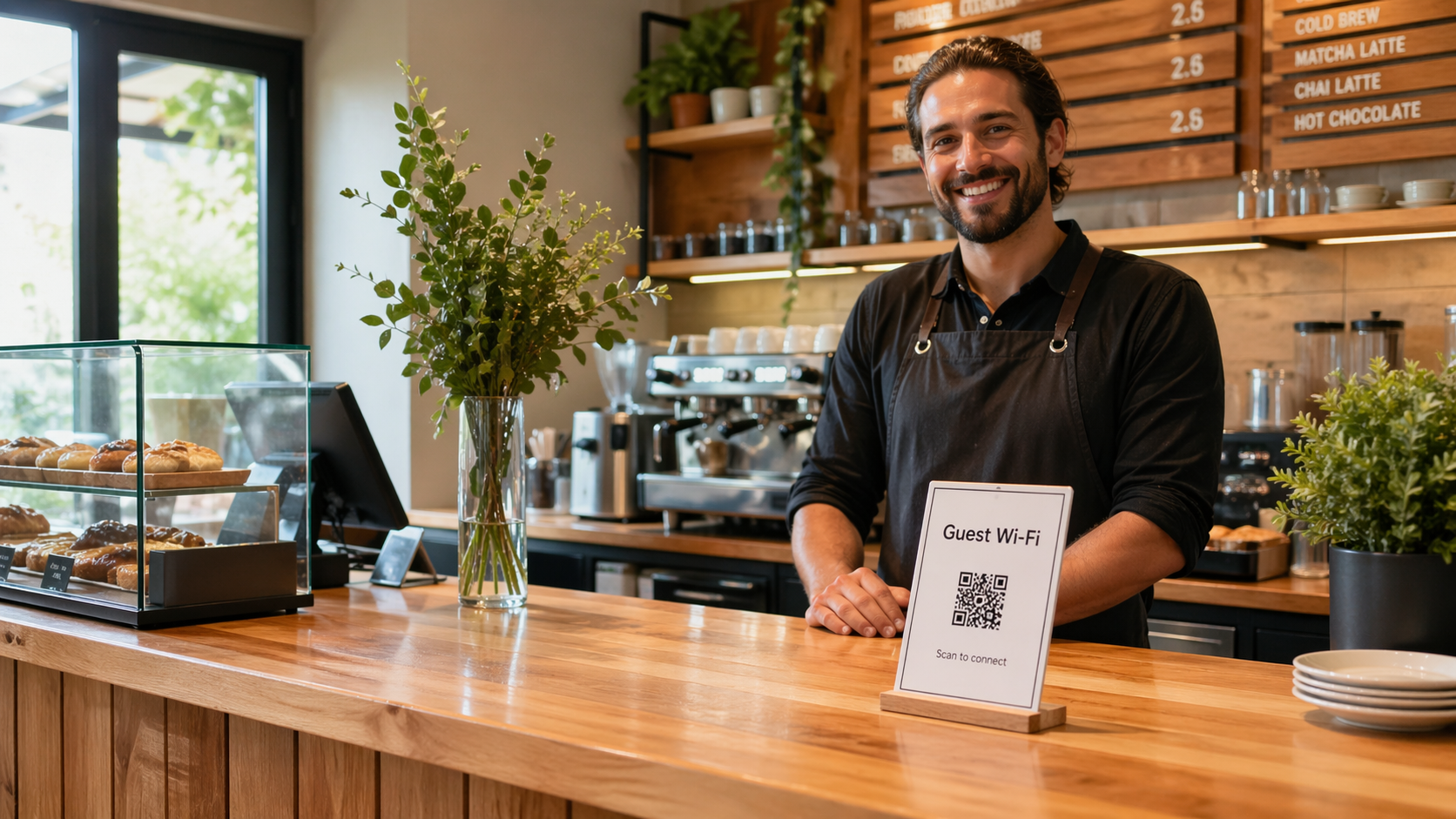
Give the QR one clear job
Guests scan faster when they know what will open. Use plain language on the tent or sticker—“Scan for our current menu” or “Allergen PDF”—instead of a mystery code next to your logo alone.
If you also use QR codes for reviews or Wi‑Fi, keep those signs visually separate so people are not guessing which scan does what.
Keep a paper path for people who prefer it
Some guests dislike phones at the table, have low vision, or run out of battery. A small stack of folded menus, a chalkboard special board, or a verbal offer from staff covers the same information without making anyone feel singled out.
Frustration usually comes from only digital access, not from offering digital as an option.
Match the link to what you actually maintain
Broken or outdated links train guests to ignore your next QR. Point the code at a page you update often—your website menu, a hosted PDF you control, or a stable ordering link from your POS provider.
When the URL changes, plan a quick reprint or sticker swap. If you are not sure how long a campaign URL will last, use the Link / URL QR tool only after you have a long-lived destination, or regenerate in the Menu QR tool when you change providers.
Placement and pacing at the table
Table tents work best when they are easy to read at arm’s length, not hidden behind condiments. If you run full service, many teams find it smoother to mention the QR once when guests sit—“Menu is on the tent if you’d like to browse on your phone—we’re happy to read specials aloud too.”
For takeout lines, a single sign at eye level near the queue beats repeating the same instruction to every customer.
What to avoid
- Tiny codes on glossy stock that glare under dining room lights.
- Multiple different menu QR stickers layered on old ones.
- Opening straight to a heavy PDF on slow mobile networks with no short intro page.
- Asking guests to scan before they have decided they want a menu at all.
Next step: Build or refresh your menu QR in the Menu QR tool, scan it yourself on Wi‑Fi and cellular, and walk the path a first-time guest would see.
For review prompts that pair well with a smooth meal, see our guide on Google review QR placement. For guest Wi‑Fi signage that matches the same tone, read printing a Wi‑Fi QR sign and using Wi‑Fi QR in your business. When you add pay-at-phone or tip-jar codes, keep labels distinct—our guide on payment QR codes for tips and quick checkout walks through what to encode and what to print.