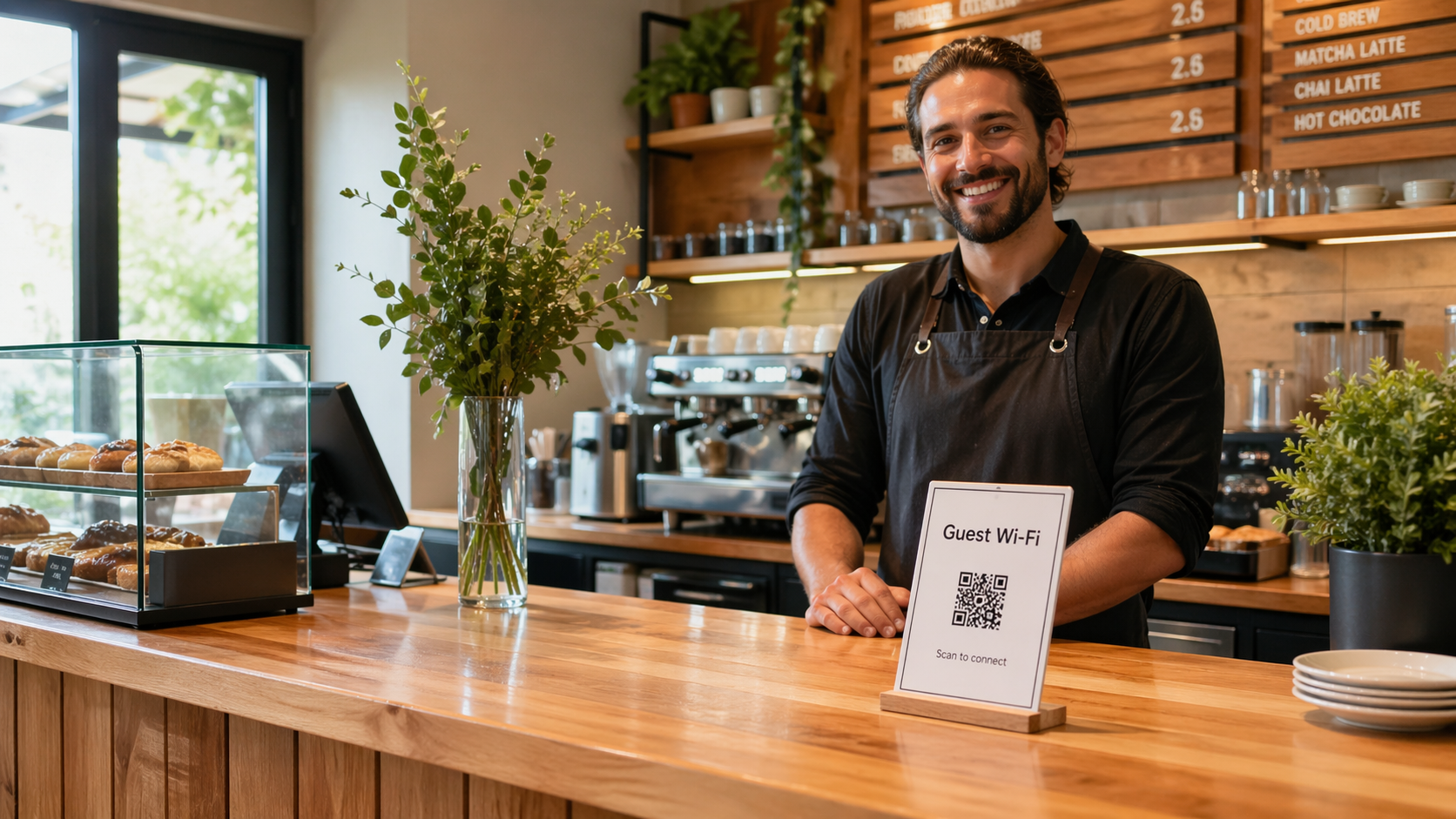
What a Wi-Fi QR code does
A Wi-Fi QR code packages your network name, security type, and password into one scan. Instead of spelling credentials at the counter, guests tap once and connect.
This is especially useful in busy storefronts where staff time is limited and customers expect quick access.
Best places to display it
Put your Wi-Fi QR in places where customers naturally pause: table tents, reception counters, waiting chairs, and near point-of-sale screens. Use clear labeling like "Guest Wi-Fi" so the purpose is obvious.
For events or pop-ups, a standing sign near check-in works better than small stickers customers may miss.
Why guest networks matter
A guest network keeps customer traffic separated from business devices and sensitive systems. Even if your hardware is simple, separating guest access reduces operational risk.
If your router supports it, use a dedicated guest SSID for public access and keep your internal network private.
Testing before printing
Always test with the exact network settings: SSID, security type, and password. Scan on both iPhone and Android if possible, and confirm it connects to the intended guest network.
Print one small test batch first. Sign material, lighting, and distance can affect scan reliability more than expected.
When to update your QR code
Regenerate your Wi-Fi QR any time you change the guest password, security type, or network name. Keep a quick replacement process so outdated signs do not linger.
Common mistakes to avoid
- Using the wrong security type in the generator.
- Forgetting to regenerate after password changes.
- Placing QR signs where glare makes scanning hard.
- Mixing private and guest network credentials.
Next step: Build your guest access code in the Wi-Fi QR tool, then test it on two device types before printing.
Need broader setup help? Visit the Help hub. You can also improve follow-up with our article on Google Review QR placement.